MVsharp JavaScript integration
How to integrate your existing BASIC application with server-side JavaScript scripting.
Introduction
JavaScript is a powerful scripting language that is extensively used by millions of programmers around the world. It also has a rich set of libraries to perform many functions that are freely available.
The purpose of integrating JavaScript with MVsharp is to give software development houses the ability to use JavaScript programmers to achieve application functionality seamlessly in your MVsharp environment.
JavaScript is also an interpreted language that does not require compilation before it is executed, making deployment of your software simple and easy.
Our JavaScript engine is the Chrome V8 engine which is the same JavaScript engine used by Chrome and Microsoft Edge browsers. When a script is executed, the V8 engine is loaded into your .NET process.
- Because the script is executed in the same process and there are no IPC calls to another process, it is lightning fast.
- Your entire session is available in the JavaScript script.
- The entire MVsharp Runtime (BASIC Runtime) is available as functions inside your JavaScript script. You can open files, read records, do OCONVs etc. In fact, every single BASIC function is available.
- JavaScript scripts are seamless to your existing application: you can CALL a JavaScript script and pass arguments exactly the same way you call a BASIC subroutine.
- Conversely you can call a BASIC subroutine from JavaScript.
There are no extensions or runtime that need to be installed in order to use JavaScript scripts. It is all built into the MVsharp runtime.
In order to differentiate JavaScript scripts from BASIC programs, all JavaScript scripts must end with the suffix ".js".
e.g. HelloWorld.js
Creating JavaScript scripts
JavaScript scripts are stored in any directory file and can co-exist with your BASIC programs in the same file.
For the purposes of this document, we are going to create a separate file called JavaScripts where we will store our JavaScript scripts.
>CREATE.FILE JavaScripts Type=Directory
JavaScript scripts can be created using ED or Visual Studio Code. Visual Studio Code has the advantage of code highlighting, linting, formatting etc.
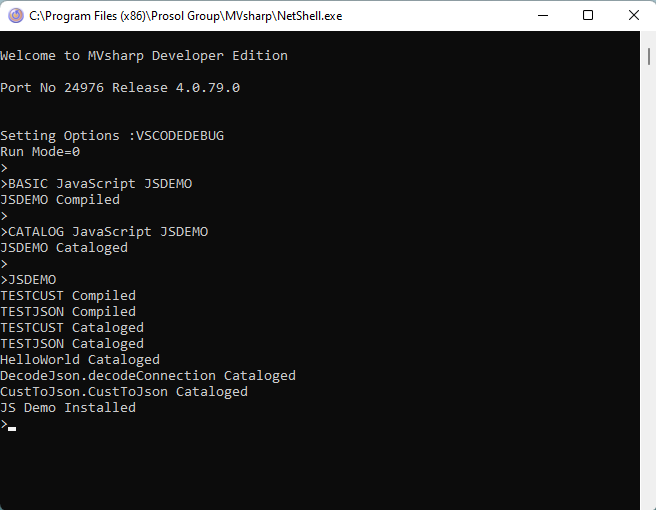
Installing the JavaScript Demo Programs
Download the JavaScript.zip file from the Documentation folder.
Extract the contents to the file created above and run the following commands:
Configuring Visual Studio Code For JavaScript
There is a JavaScript extension for Visual Studio Code that will enrich your JavaScript development with MVsharp. You can install the extension by typing "JavaScript" in the Extensions search box and selecting the JavaScript extensions from Microsoft. Also install the JavaScript Debugger extension, which MVsharp uses for visual debugging.
MVsharp is installed with IntelliSense definitions for the MVsharp Runtime, Dynamic Array and Session objects. This enables you to use IntelliSense and linting on all of the MVsharp Runtime in JavaScript.
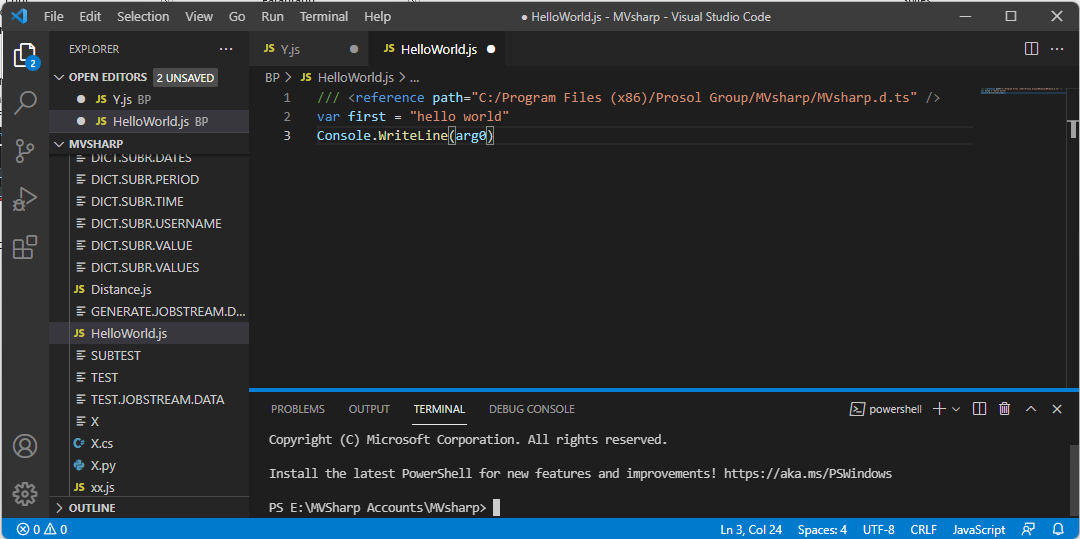
To configure the path, add the following at the top of each JavaScript file:
/// <reference path="C:/Program Files (x86)/Prosol Group/MVsharp/MVsharp.d.ts"/>

hw = "hello world"
Console.WriteLine(hw)
The above path depends on where you initially installed MVsharp.
Creating Scripts
HelloWorld.js
Following convention, our first script displays "Hello World" on the terminal. In Visual Studio Code, create a new file called HelloWorld.js with the following:
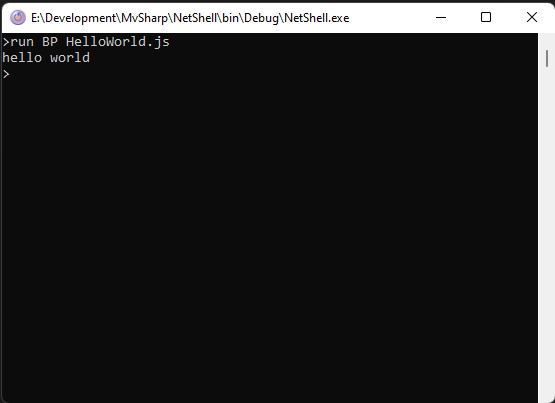
We can test the script by running it:
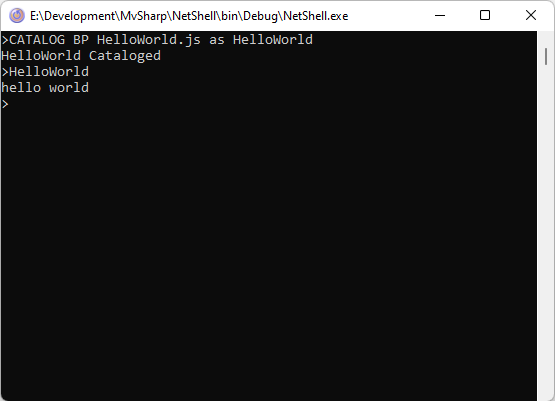
We can also CATALOG the script so that we can call it straight from the command line:
Creating and calling JavaScript Functions
Using JavaScript with MVsharp gives the best of both the JavaScript World and the .NET world. The entire MVsharp runtime as well as any JavaScript libraries are available in your JavaScript script.
Most MV developers have probably spent far too much time managing JSON documents. The following example highlights using the right language to easily decode a JSON document into a Dynamic Array.
It also illustrates using standard MVsharp BASIC functionality inside of a JavaScript script.
/// <reference path="C:/Program Files (x86)/Prosol Group/MVsharp/MVsharp.d.ts"/>

function decodeConnection(jsonString,dynarr) {
    var conn = JSON.parse(jsonString.ToString());
    Functions.CRT(conn.AccountName,false);
    dynarr.setAttribute(1,conn.AccountName);
    dynarr.setAttribute(2,conn.LastProcessed);
    dynarr.setAttribute(3,conn.MessagesProcessed.toString());
    dynarr.setAttribute(4,conn.ProcessingRequest.toString());
    dynarr.setAttribute(5,conn.StartTime);
}
//  {
//    "AccountName": "mvSHARP",
//    "StartTime": "0001-01-01T00:00:00",
//    "ProcessingRequest": false,
//    "LastProcessed": "2021-11-22T13:24:44.5216517+02:00",
//    "MessagesProcessed": 1
//  }
This script is called from a BASIC program by passing 2 arguments to the script:
Program TestJson
jstring = '{"AccountName":"MVsharp","StartTime":"0001-01-01T00:00:00","ProcessingRequest": false,"LastProcessed": "2021-11-22T13:24:44.5216517+02:00","MessagesProcessed": 1 }'
Call DecodeJson.decodeConnection(jstring,ans)
Crt ans
End
When you pass a Dynamic Array to the JavaScript function as an argument, it behaves exactly the same as a BASIC subroutine: any changes to the arguments are returned to the calling program.
Call DecodeJson.decodeConnection(jstring,ans)JavaScript functions are called the same way as BASIC Subroutines.
Functions.CRT(conn.AccountName,false);The above statement in the JavaScript script invokes the MVsharp BASIC CRT function, giving total interoperability between JavaScript and BASIC. This simplifies doing things in JavaScript. The entire BASIC runtime engine is available in JavaScript including IntelliSense to assist.
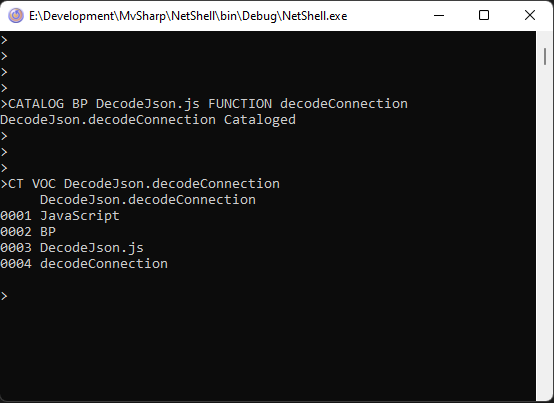
A JavaScript script may contain more than 1 function inside the script. To catalog a specific function inside the script the following syntax is used:
Using MVsharp BASIC runtime in JavaScript
As mentioned previously, you can use the entire BASIC runtime inside your JavaScript script. Consider the following example: We need to produce a JSON document from a CUSTOMER record. In the example we will use as many BASIC functions as we can.
// First define the class with a constructor
class Customer {
    constructor(firstName, lastName, address, postCode,birthDate) {
        this.firstName = firstName;
        this.lastName = lastName;
        this.address = [];
        // extract each multi value and add to address
        address.split(String.fromCharCode(253)).forEach(line => {
            this.address.push(line);
        });
        this.postCode = postCode;
        this.birthDate = birthDate;
    }
}

// create a function to open a MVsharp file, read a record, populate a class and return a JSON string
function CustToJson(customerId, jsonCust) {
    // create MVsharp dynamic arrays
    var fileVariable = new DynamicArray();
    var fileName = new DynamicArray("CUSTOMER");
    var customerRecord = new DynamicArray();
    var readv = new DynamicArray(-1);
    var dateConv = new DynamicArray("D4-");
    if (Functions.OPEN(new DynamicArray(), fileName, fileVariable)) {
        // all arguments must be of type DynamicArray
        Functions.READ(fileVariable, customerId, customerRecord, readv, false, false, false);
        // use MVsharp OCONV to convert Pick internal date
        var birthDate = new DynamicArray(customerRecord.getAttribute(5));
        birthDate.SetValue(Functions.OCONV(birthDate,dateConv));
        // create an instance of the Customer class with data
        var customer = new Customer(customerRecord.getAttribute(1),
            customerRecord.getAttribute(2),
            customerRecord.getAttribute(3),
            customerRecord.getAttribute(4),
            birthDate.ToString());
        // convert customer to JSON and return in the second argument
        jsonCust.SetValue(JSON.stringify(customer,null,' '));
    }
}
Debugging Scripts
We use the VS Code JavaScript debugger to debug our scripts. The debugger extension has to be installed. Locate and install the extension in VS Code.
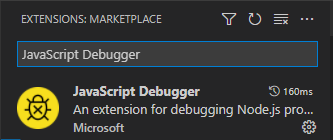
The following applies to debugging MVsharp JavaScript:
- The extension does not run in a Workspace; you will need to open the path to the MVsharp directory.
- Launch settings need to be configured before the debugger can be used.
In VS Code open User settings and add the following:
{
    "update.mode": "none",
    "launch": {
        "version": "0.2.0",
        "configurations": [
            {
                "name": "Attach to ClearScript V8 on port 9292",
                "type": "node",
                "request": "attach",
                "protocol": "inspector",
                "address": "localhost",
                "port": 9292
            }
        ]
    }
}
Save and reload VS Code.
Launching the debugger
1 - First run your script from MVsharp to set up the connection between VS Code and MVsharp. This only needs to be done once in a session.
2 - Open the JavaScript script in VS Code. Add the debugger statement in your code:
function CustToJson(customerId, jsonCust) {
    // create MVsharp dynamic arrays
    debugger
    var fileVariable = new DynamicArray();
3 - Press F5 to enable the debugger. The Debug status bar should look like this:

4 - The red connectors mean the debugger is active.
5 - Run your MVsharp program that calls the script and the debugger will be activated.
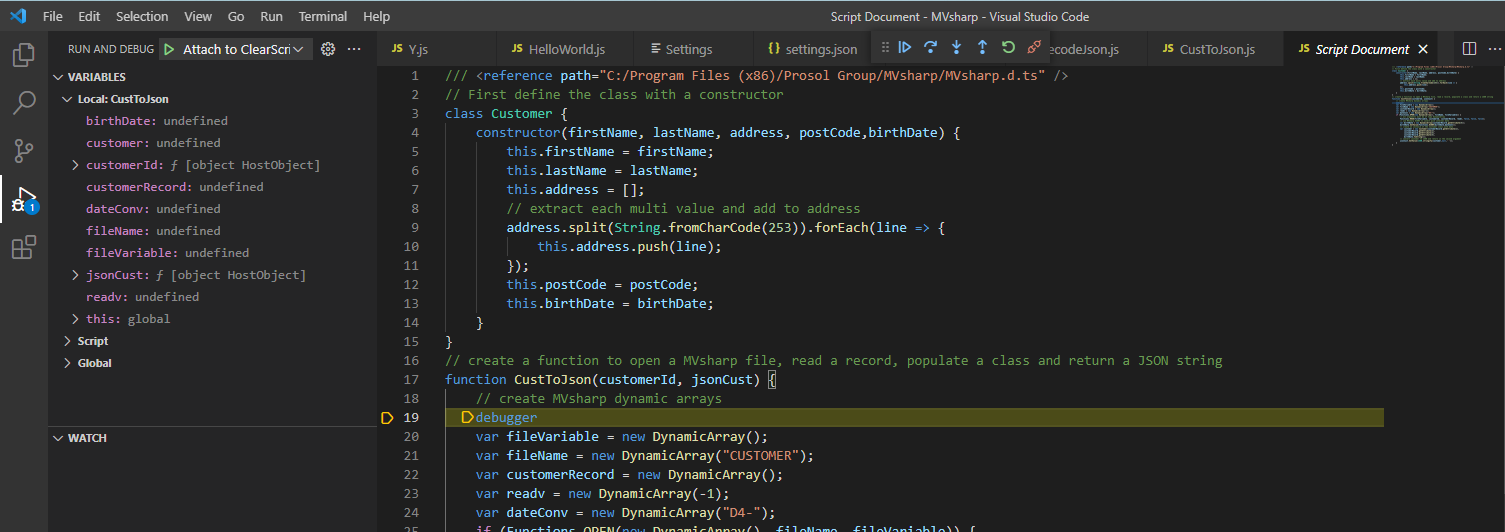
All VS Code debugging features are now available.
Note
Sometimes the debugger gets a little confused and your script won't connect to the debugger. If this happens, close all instances of the MVsharp shell, start a new shell and try again.